4.1. Initial Service Screen
4.1. Initial Service Screen
On the initial service screen, various convenience items, such as Monitoring, Variable, and File Manager, can be set as desired.
When 『[F1]: Service』 key is pressed on the initial screen of either manual or auto mode, the following screen appears.
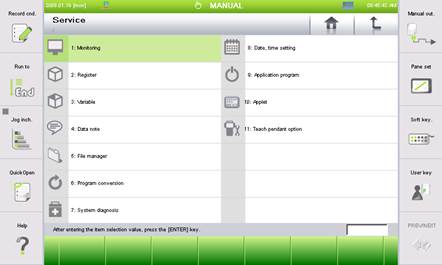
Figure 4.1 Initial service screen

l How to select submenus
(1) When a submenu needs to be selected, move the reverse bar to the desired item by using the [Direction] key, and then press the [Enter] key.
(2) Enter the number of the desired item into the input text box by using the [Number] key and then press the [Enter] key.
(3) Touch the desired item on the touch screen directly.
The following services will be provided for individual items.
(1) Monitoring: Checks the states of various inputs, outputs, and applications
(2) Register: Sets the shift and count register
(3) Variable:Checks and sets various variables
(4) Data comment: Sets notes for the input/output signals and variables
(5) File manager: Manages files in the main board, teach pendant, and USB memory (Move, copy, and delete)
(6) Program conversion: Converts the conditions and positions of prepared individual programs in a batch process or individually
(7) System diagnosis: Upgrades the system version and checks the state of the robot and controller
(8) Date and time setting: Sets the date and time of the teach pendant
(9) Application program end: Ends the programs of the teach pendant
(10) Applet: Sets various applets and their usage
(11) Teach pendant option: Sets the sound effects, screen protection, and auto restart duration
(12) Teach pendant sharing: Sets the teach pendant sharing function
(13) Previous screen record: Checks the renewal state of input and output signals
In Chapter 4, the details on the services described above will be explained.