11.1. Preference dialog box
11.1. Preference dialog box
Various options of HRSpace3 can be set in Preference dialog box.
These settings are saved in Windows registry not in documents.
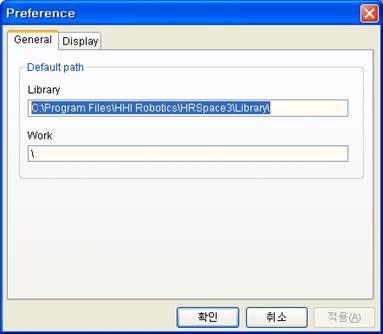
n General - Library
Set a default folder path when you select Import models in popup menu. Basically it is set to HRSpcace3/Library.
n General - Work
Basic location that users’ work will be saved.
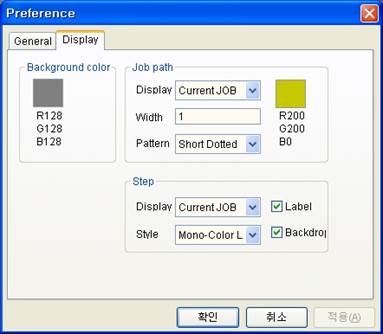
n Display – Background color
Set background color on a 3-D screen.
n Display – Job path
Select how to display a straight path between steps in Job. You can choose color, width, pattern such as solid or dotted line.
l Display method
Hide | Don’t display a path between steps. |
Selected JOB | Display a path only to JOB that is selected by clicking in tree window or on a 3-D screen. |
Current JOB | Display a path only to JOB that is a current program counter. |
All | Display paths in all steps of all Job for all robots. There’re chances that readability get worse and the speed of 3-D display gets poor when the number of steps are too many. |
n Display – Step
Determine how to display steps. You can choose the displaying style of step, and whether to show the step label, and background.
l Display method
Hide | Don’t display steps. |
Selected JOB | Display a path only to JOB that is selected by clicking in tree window or on a 3-D screen. |
Current JOB | Display a path only to JOB that is a current program counter. |
All | Display paths between all steps of all Job in all robots. When the number of steps are big, there’re cares that readability and the speed of 3-D display get poor. Display paths in all steps of all Job for all robots. There’re chances that readability get worse and the speed of 3-D display gets poor when the number of steps are too many. |
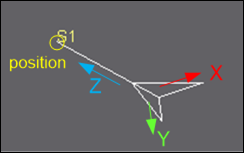
Steps are displayed as an arrow shape if Mono-Color Line is chosen for step style. In this case, the position and direction are as below.